
Appearance
Layer References
Overview
Layers in Mapworks exist within a hierarchy of resources:
Connection → Dataset → Layer → MapEach layer has a parent dataset that provides its data, and can be used in multiple maps. Understanding these relationships helps you:
- Navigate between related resources
- Understand what will be affected when modifying a layer
- Track where a layer is being used
Viewing the Parent Dataset
Every layer (except Markup Layers and temporary WMS layers) is associated with a parent dataset.
To navigate to the parent dataset from a map:
- In the layer tree, right-click the layer
- Click View Dataset
This will go to the dataset in Mapworks UI where you can view connection information, field configuration, and other dataset settings.
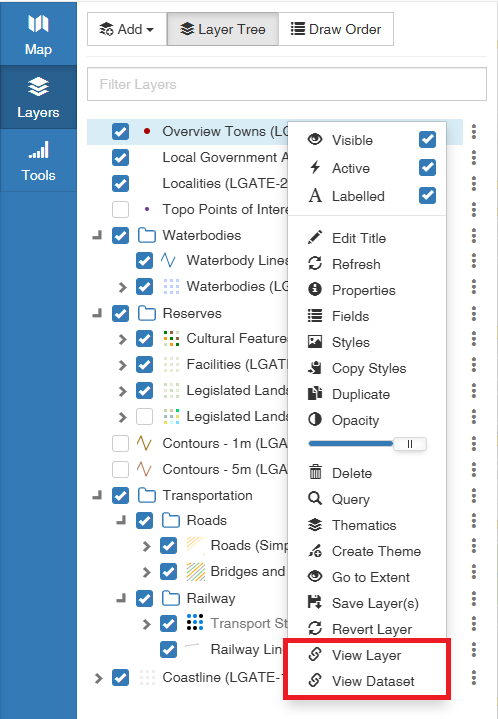
To view parent dataset in Mapworks UI:
- Go to Mapworks UI
- Click the Layers Tab and search for the desired layer
- Click on the parent dataset
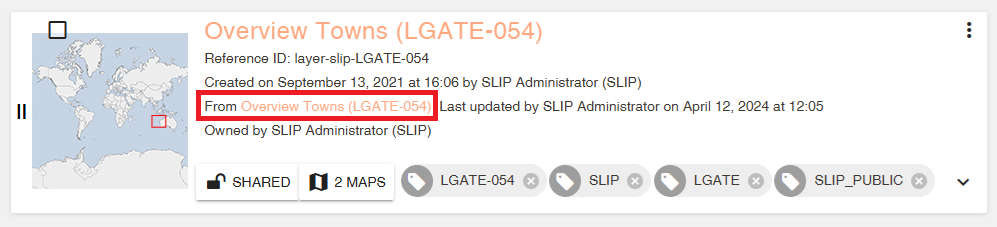
Viewing Maps Using This Layer
A single layer can be added to multiple maps. This is useful for maintaining consistent styling and configuration across different map views.
To view which maps use a layer:
- Go to Mapworks UI
- Click the Layers Tab and search for the desired layer
- If the layer is included in at least one map, a button will display the number of maps.
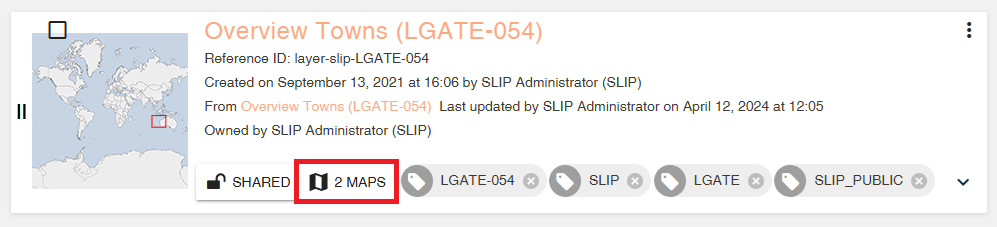
- Click the Maps button to view a list of all maps that include this layer.
💡 Tip
Before modifying a shared layer's styling or configuration, check which maps use it to understand the impact of your changes.
Understanding Layer Dependencies
When working with layers, it's important to understand the dependency chain:
| If you modify... | It affects... |
|---|---|
| Connection | All datasets using that connection, and all their layers |
| Dataset | All layers using that dataset |
| Layer styling (Save to Layer) | Maps where the layer styling has been overridden are not affected. Maps where the layer was left unchanged will reflect the new saved styling |
| Layer styling in a map | Only that map (layer configurations can be overridden per-map) |
⚠️ Warning
When a layer is deleted, any maps that included it will show the layer as unavailable. Always check layer references before deleting.
Navigating Related Resources
From Layer to Dataset
- Navigate to the layer
- Click on the parent dataset
From Layer to Connection
- Navigate to the parent dataset
- Click on the parent connection
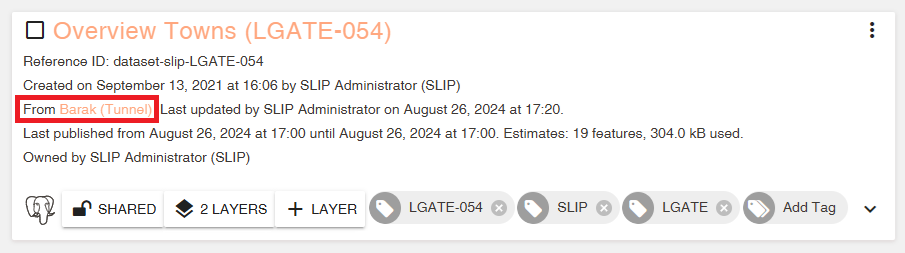
From Dataset to Layers
- Navigate to the desired dataset
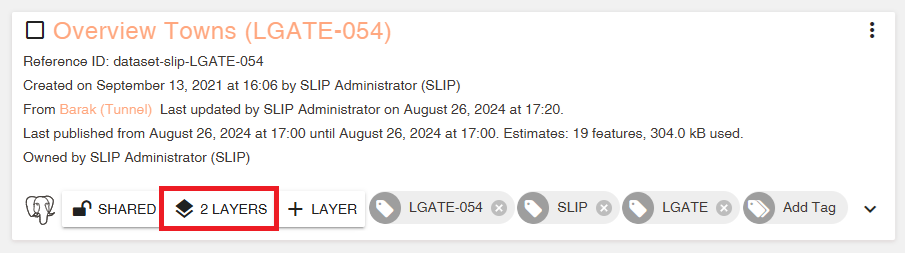
- Click the Layers button to view a list of all layers created from this dataset.
From Map to Layers
- The layer tree in any open map shows all layers included in that map