
Appearance
Map References
Overview
Maps sit at the end of the Mapworks resource hierarchy:
Connection → Dataset → Layer → MapEach map contains multiple layers that visualise data from datasets and connections. Understanding these relationships helps you:
- Navigate between related resources
- Understand the data sources behind your map
- Track layer usage and dependencies
Viewing Layers in a Map
A map can contain many layers, organised in the layer tree. Each layer references a dataset (except Markup Layers and temporary WMS layers).
To view all layers in a map:
- Open the map
- View the Layer Tree on the left side of the map
- Expand layer groups to see nested layers
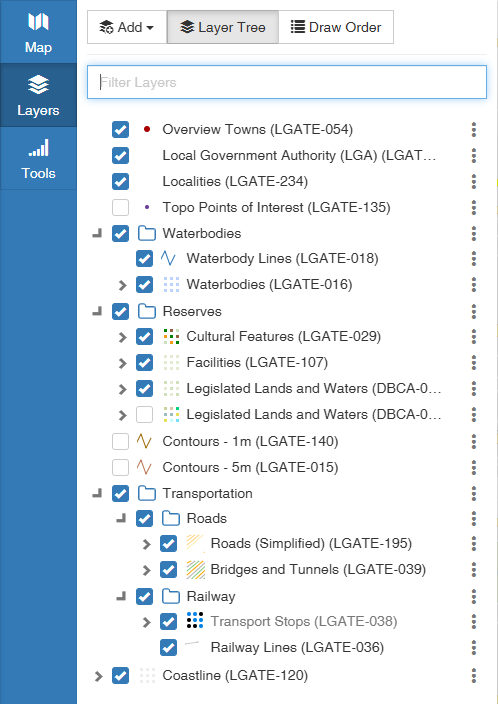
To work with a layer in a map:
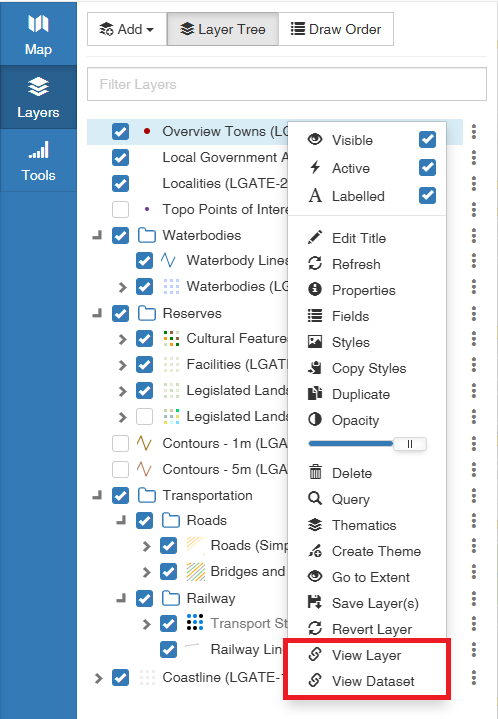
Right-click a layer in the layer tree to access:
- Properties — Open the Layer Properties menu
- Styles — Open the Styles Editor to modify layer styling
- View Layer — Open the Mapworks UI Layer list, filtering to show the selected layer
- View Dataset — Open the Mapworks UI Dataset list, filtering to show the selected dataset
See Layer Selector Options for a full list of right-click options.
Understanding Map Dependencies
Maps depend on their layers, which in turn depend on datasets and connections:
| If this changes... | Your map... |
|---|---|
| Layer styling (Save to Layer) | Maps where the layer styling has been overridden are not affected. Maps where the layer was left unchanged will reflect the new saved styling |
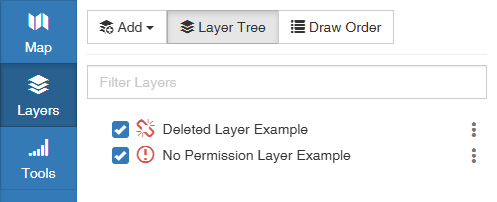
| Layer or dataset removed | Affected layers display a broken link in the layer tree and are not usable |
| Dataset fields | May affect labels, queries, and thematics |
| Dataset publication | Shows updated data after refresh |
| Permissions changed | Affected layers display an exclamation mark in the layer tree and are not usable |
📄 Note
Maps store their own layer configurations (visibility, order, group structure). If a layer's styling has been overridden in a map, saving new styling to the layer will not affect that map. However, maps where the layer was added and left unchanged will reflect the new saved styling.
Navigating Related Resources
From Map to Layers
- The layer tree in any open map shows all layers included in that map
From Map to Dataset
- In the layer tree, right-click the layer
- Click View Dataset
From Map to Connection
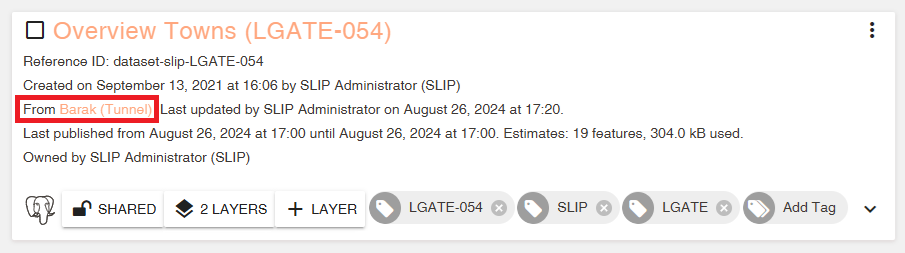
- Navigate to a layer's parent dataset
- Click on the parent connection
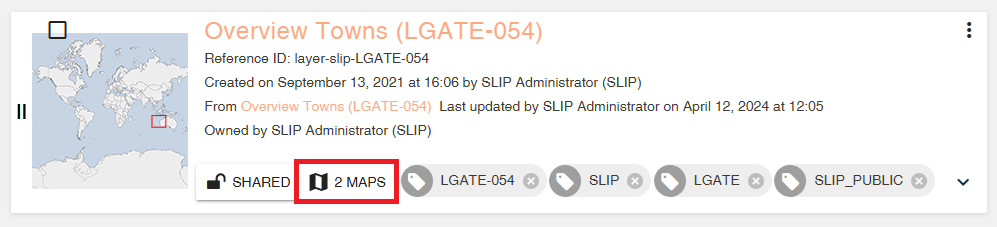
From Layer to Maps (reverse lookup)
- Go to Mapworks UI
- Click the Layers Tab and search for the desired layer
- Click the Maps button to view a list of all maps that include this layer.
Copying Maps
When you copy a map (Save As), the new map:
- Gets its own independent layer configurations
- References the same underlying datasets
- Can be modified without affecting the original
This is useful for creating variations of a map with different styling or layer visibility.