Appearance
Dataset References
Overview
Datasets sit in the middle of the Mapworks resource hierarchy:
Connection → Dataset → Layer → MapMost datasets have a parent connection that provides their data source, and can have multiple layers created from them. Understanding these relationships helps you:
- Navigate between related resources
- Understand what will be affected when modifying a dataset
- Track which layers depend on a dataset
Viewing the Parent Connection
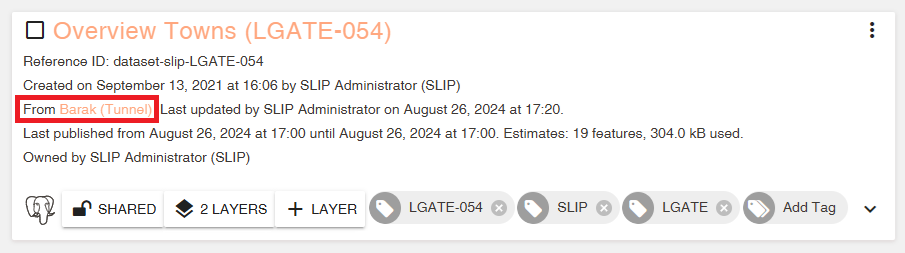
Most datasets are associated with a parent connection that defines the data source. Editable Datasets and Tiled Datasets are exceptions and do not require a parent connection.
📄 Note
If a dataset does not have a parent connection, no parent connection link will be shown in Mapworks UI.
To view the parent connection from a dataset:
- Go to Mapworks UI
- Click the Datasets Tab and search for the desired dataset
- Click on the parent connection
Viewing Child Layers
A dataset can have multiple layers created from it. Each layer can have different styling and configuration while sharing the same underlying data.
To view layers created from a dataset:
- Go to Mapworks UI
- Click the Datasets Tab and search for the desired dataset
- If layers have been created from this dataset, a button will display the number of layers.
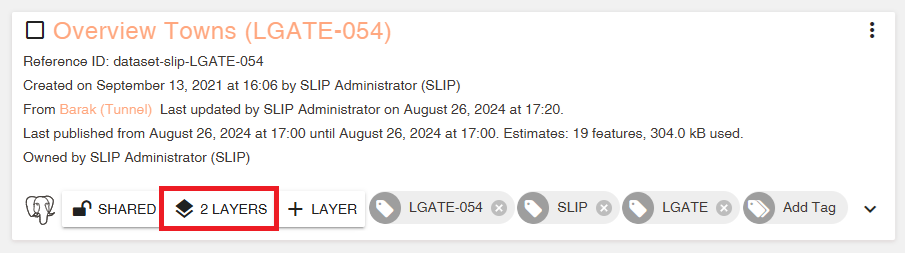
- Click the Layers button to view a list of all layers created from this dataset.
Understanding Dataset Dependencies
Datasets connect your data source to your map visualisations. Changes to a dataset affect all downstream layers and maps:
| If you modify... | It affects... |
|---|---|
| Publication settings | How up-to-date the data is in all child layers |
| Max Scale Limit | Maximum visible zoom scale for all child layers |
| Searchable/Queryable toggles | Which fields appear in Full Text Search, Query Builder, and Thematics across all child layers |
| Field adding/remapping | Field availability across all child layers (styling, labels, queries) |
| Field Dictionaries | Display values in tooltips, labels, and search results across all child layers |
⚠️ Warning
When deleting a dataset that has child layers, you will be prompted with the option to also delete all child layers. If you choose to delete them, all child layers will be permanently removed. If you choose to delete only the dataset, the child layers will be left broken and unusable, and cannot be recovered. Always check dataset references before deleting.
Navigating Related Resources
From Dataset to Connection
- Navigate to the desired dataset
- Click on the parent connection
This is only available for datasets that have a parent connection.
From Dataset to Layers
- Navigate to the desired dataset
- Click the Layers button to view a list of all layers created from this dataset.
From Dataset to Maps
- Navigate to a child layer
- Click the Maps button to view a list of all maps that include this layer.
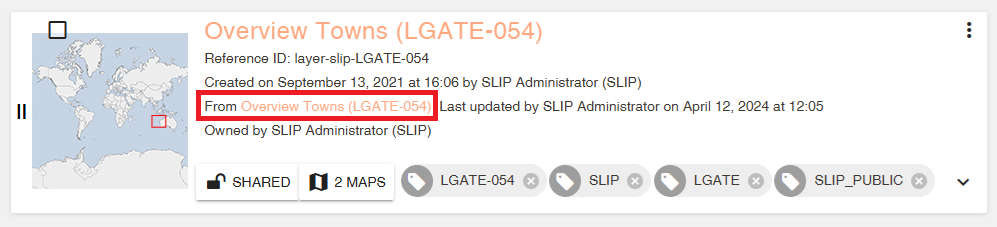
From Layer to Dataset
- Navigate to the desired layer
- Click on the parent dataset